Transport
The transport is the row at the top of the studio. It controls time: whether the song is playing, where, how fast and whether it repeats. The name comes from tape machines, where these buttons moved the tape.
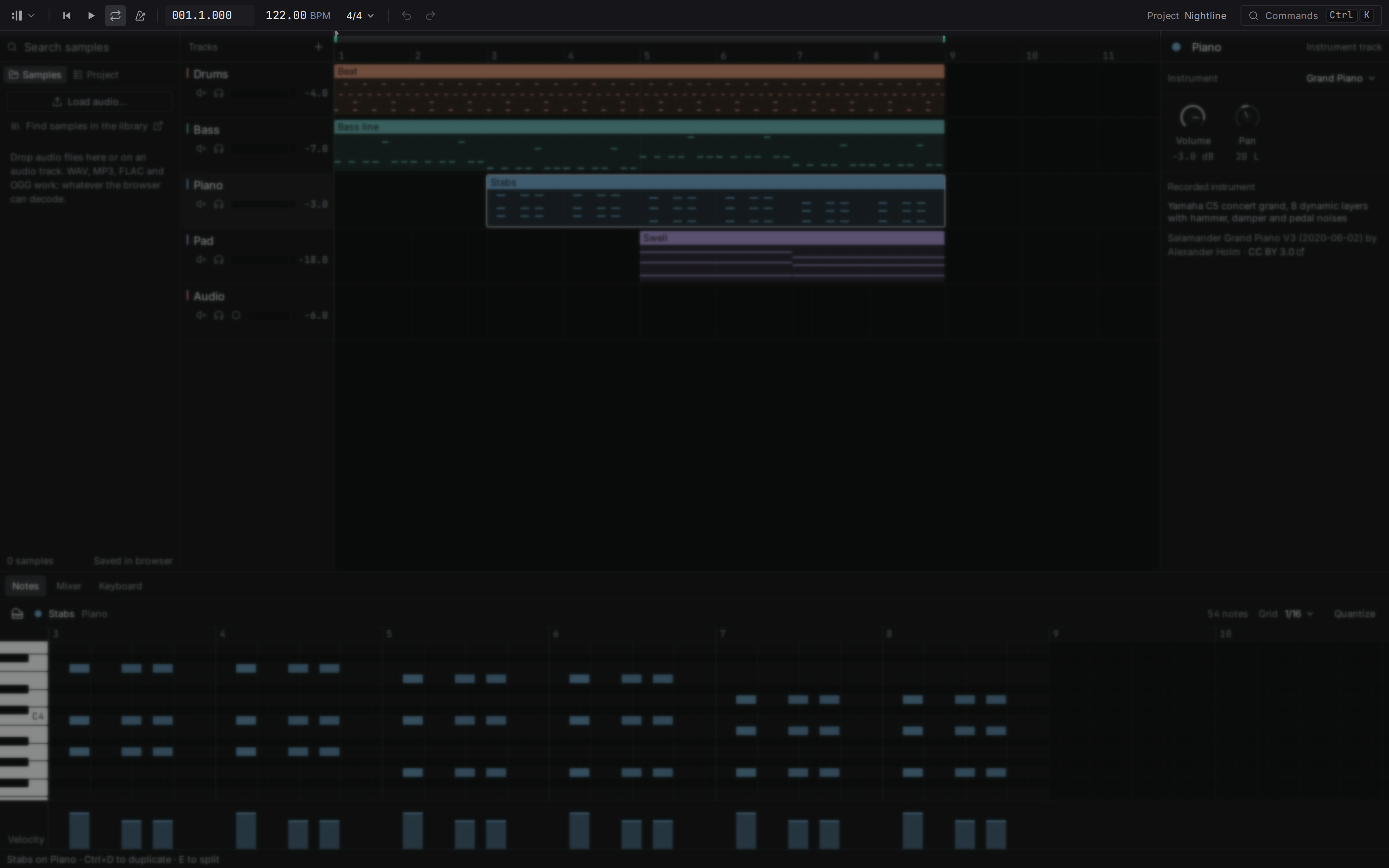
The left half is about time. From the left: the project menu behind the Flesance mark, return to start , play , loop , the metronome , the position, the tempo, the time signature, then undo and redo . Each one is explained below.
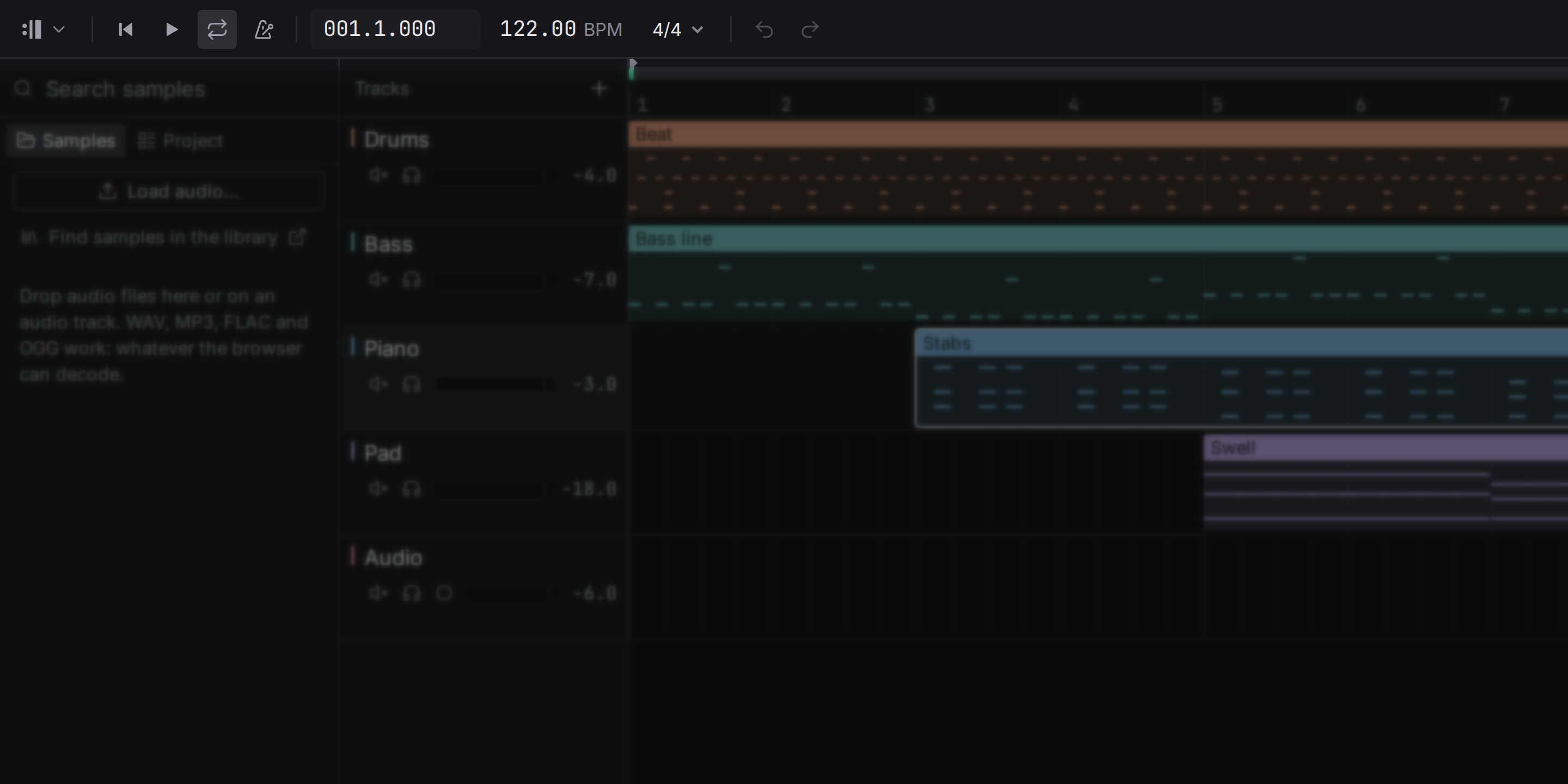
The right half is about the project: its name (double-click it to rename the project) and Commands , the list of everything the studio can do. With Technical details on in the settings, the processor load shows here too. In the desktop app the buttons that minimise, enlarge and close the window are at the far right.
Play and stop
Press Space or the play button . Playback starts from the cursor, and when you stop, it returns there, so you can listen to the same passage again and again while you edit it. In the desktop app the arrangement turns the page when the cursor reaches its right edge, so the music you hear stays on screen; once you scroll the view yourself, it stays where you put it.
The first time you press play, the browser asks the computer for audio. That is why there is no sound before your first click or key press: browsers do not let a page make noise on its own. The desktop app opens the sound device on the first play too, so a project you only look at does not hold the device.
Return to start
Home or the button puts the cursor back at the very beginning of the song.Position
The position shows where you are as bar.beat.tick: 005.3.480 is bar 5, beat 3, and 480 ticks into that beat. A beat has 960 ticks, so 480 is exactly half a beat. Ticks let the studio place notes precisely: a triplet is exactly one third of a beat, not an approximation.
Click the numbered strip under the song sections (the ruler) above the tracks to move the cursor there. Drag along it to scrub.
Tempo
Tempo is the speed of the song in beats per minute (BPM). 60 BPM is one beat per second; most pop and dance music sits between 90 and 130.
Drag the tempo up or down to change it, or double-click it and type a number. Notes stay on their beats when you change the tempo: the song gets faster or slower, it does not fall apart. Audio clips are the exception: a recording plays at its own speed (see Samples).
Time signature
The time signature says how beats are grouped into bars. The top number is how many beats a bar has, the bottom one which note value is a beat: 4/4 is four quarter notes a bar, the pulse of most pop, rock and dance music; 3/4 is a waltz; 6/8 is six eighth notes felt as two groups of three, the lilt of a ballad or a jig.
Click the time signature next to the tempo and pick one: 2/4, 3/4, 4/4, 5/4, 6/8, 7/8, 9/8 or 12/8. The ruler, the bar numbers, the grid and the metronome follow at once. Notes do not move: a note on a given beat stays exactly there in time, it may just land in a different bar.
Loop
When the loop is on, playback repeats the stretch of time between the loop’s start and end, marked by the blue bar at the top of the ruler. Drag in that top strip to draw a new loop region; it snaps to the grid. Press L or the loop button to turn looping on or off. In the desktop app, Shift+L sets the loop around the selected clips, from the start of the first to the end of the last, and turns it on.
Looping is how you work on a section: play four bars over and over while you change the notes, the sound and the balance.
Markers
In the desktop app. A marker names a moment of the song, such as where the chorus starts, so you can find it again at once. Shift+M puts a marker at the cursor, named Marker 1, Marker 2 and so on; its name is written on the ruler. , and . jump to the previous and the next marker. Remove one from its menu on the ruler. Markers are part of the song: when a song is worked on from two computers, both computers’ markers are kept.
Metronome
The metronome clicks on every beat of the time signature, with a higher click at the start of each bar, so you can hear the tempo while you play or check whether something is in time. In 6/8, 9/8 and 12/8 it clicks every eighth note and gives the start of each group of three a slightly higher click too, so the bar keeps its swing. Press M or the metronome button to turn it on or off.