Note editor
The note editor (often called a piano roll) shows the notes of one clip. Time runs from left to right, pitch from bottom to top, and each note is a bar: where it starts is when it plays, how long it is is how long it lasts, how high it sits is which key it is.
Double-click a note clip in the arrangement to open it here.
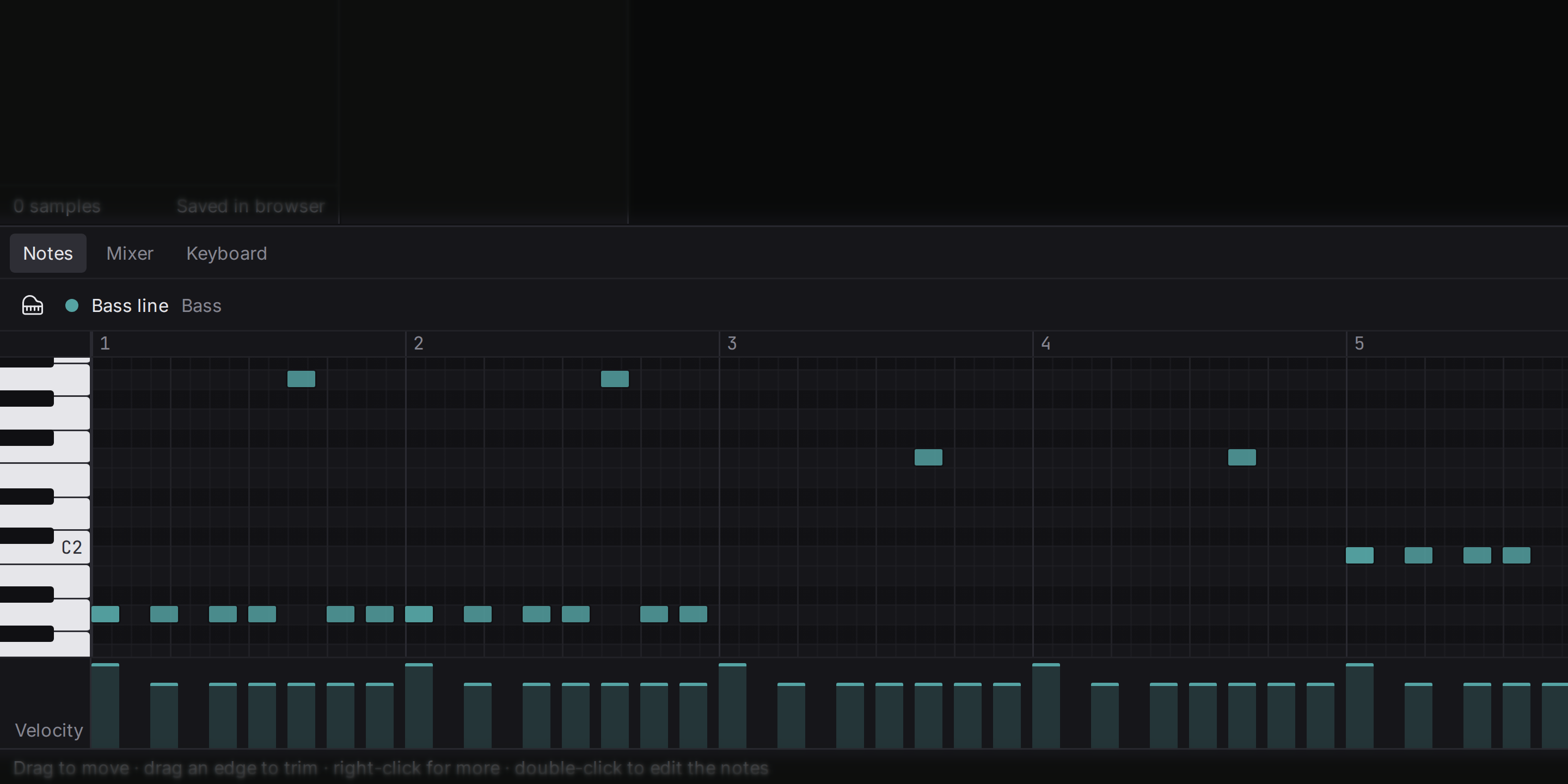
Adding notes
Double-click an empty spot on the grid. A note appears on the nearest grid line and you hear it. It takes the length you last gave a note, or one grid step. A note drawn past the end of the clip makes the clip longer, up to the next bar, in the same undo step. Right-click a note, or an empty spot, for a menu with the note commands and their shortcuts.
To change notes:
- Select: click a note; Shift-click to add or remove more; drag on empty space to select everything inside a box; Ctrl+A selects every note of the clip.
- Move: drag selected notes. Left and right changes when they play, up and down changes the pitch, and you hear each new pitch as you go.
- Length: drag the right edge of a note. All selected notes change by the same amount.
- Copy: hold Alt while starting a drag to leave copies behind.
- Transpose: ↑ and ↓ move the selection by a semitone, with Shift by an octave.
- Delete: Backspace.
Hold Ctrl while dragging to ignore the grid.
Copy, cut and paste
After a click in the note editor, Ctrl+C, Ctrl+X and Ctrl+V work on notes instead of clips. Pasted notes keep their pitches and their rhythm, and land at the cursor when the cursor is inside the clip. When it is not, they go back exactly where they were copied from, which is how you move notes into another clip at the same place in the bar: copy, open the other clip, paste.
The keyboard
The piano keys on the left show which pitch each row is: every white and black key of a piano, with the Cs labelled (C4 is middle C). Click a key to hear that pitch on the track’s instrument, which is the quickest way to find the note you have in your head. The button in the editor’s header switches between a narrow column of labels and a full piano keyboard turned on its side.
Velocity
Velocity is how hard a note is played, from 1 (barely touched) to 127 (as hard as possible). The name comes from keyboards, which measure how fast a key goes down. Velocity is not just volume: on a real instrument a harder strike also changes the sound, brighter on a piano, snappier on a drum, and sampled instruments reproduce that.
The lane under the grid shows each note’s velocity as a bar. Drag a bar up or down to change it; with several notes selected, they all change together. In the grid, softer notes are drawn fainter.
Grid
The grid is the set of lines notes and clips snap to. Its size is a fraction of a bar: at 1/16, there are four lines per beat. Choose a coarser grid (1/4, 1/8) to place chords on beats, a finer one (1/32) for fast rhythms, 1/8T for triplets (three notes in the time of two), and Off to place freely.
The same grid is used by the arrangement, so clips snap to it too.
Quantize
Quantize moves the starts of notes to the nearest grid line. Played-in notes are always a little early or late; quantizing tightens them. Press Q or the Quantize button: it works on the selected notes, or on all notes when nothing is selected. Note lengths are kept.
Perfectly quantized music can feel stiff. Quantize the parts that must lock together (kick and bass) and leave some looseness where it adds feel.
Strength
In the desktop app. Beside Quantize sits its strength, from 25 % to 100 %. At 100 % every note lands exactly on the grid; at 50 % each note moves only half the way there, so the playing gets tighter but keeps some of how it was played. The same strength is used by Humanize.
Humanize
In the desktop app. Humanize does the opposite of Quantize: it moves each selected note a little off the grid, by up to 1/32 of a beat, and changes its velocity by a few steps, up to 12, the way a player never hits two notes exactly alike. Use it on parts you programmed with the mouse that sound too even, such as hi-hats or a piano line. Choose Humanize from the note editor’s menu; the strength sets how far it goes. The result is the same on every computer, so a song humanized on one machine sounds the same on another.
Swing
In the desktop app. Swing makes every second sixteenth note play a little late, which turns a straight beat into one that bounces. It belongs to the song, not to a clip, so every part swings together. Set it in the note editor panel from 0 % (straight) to 100 %, where the late note lands on the last note of an eighth-note triplet. Notes stay where you put them on the grid; only the way they play changes, so you can take the swing out again at any time.
Key
In the desktop app. Tell the studio which key the song is in and the note editor shades the rows outside it and marks the home note of the key in the track’s colour. It is a guide, not a rule: notes outside the key can still be placed, because a passing note outside the key is often exactly what a melody needs. Choose the key in the note editor panel; No key turns the guide off. The same menu switches the rows between piano keys and note names.
Musical typing
Musical typing turns your computer keyboard into a piano that plays the selected instrument track. Press K to turn it on or off. While it is on, the letter keys play notes instead of running commands:
| Row | Plays |
|---|---|
| Z X C V B N M | White keys from C, lower octave |
| S D G H J | Black keys of the lower octave |
| Q W E R T Y U I | White keys, one octave higher |
| 2 3 5 6 7 | Black keys of the upper octave |
The keys are matched by their position, so this works in any keyboard layout. Hold Tab for the sustain pedal, ← → move the range by an octave, and ↑ ↓ change how hard the keys play (a laptop key cannot tell a soft press from a hard one, so you choose the dynamics).
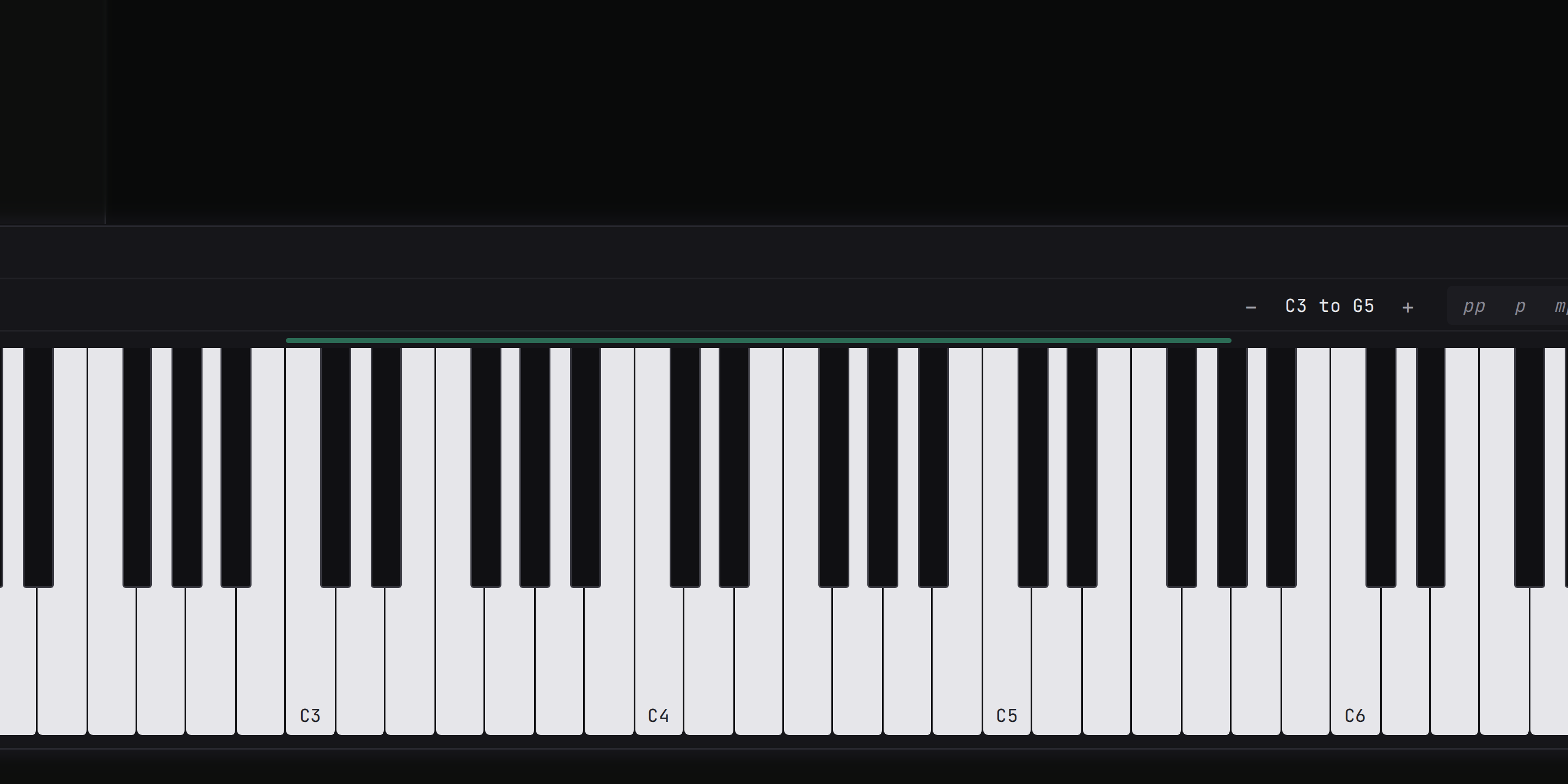
The Keyboard tab in the bottom panel shows the same keys on screen: click or tap them to play, and watch which ones musical typing is pressing. While musical typing is on, the status bar says so, because letters such as L or E then play notes instead of running their commands.
MIDI keyboard
A MIDI keyboard is a keyboard that sends notes to a computer instead of making sound itself. Plug one in over USB and it plays the selected instrument track, with the real strength of every key (so soft and hard notes sound as different as they should) and its sustain pedal.
In the web studio, open the Keyboard tab and click Connect MIDI; after that the studio reconnects by itself whenever you come back. The browser asks once for permission to use MIDI devices. If you said no, allow it again in the site settings of your browser (the icon to the left of the address) and reload the page. Chrome, Edge and Firefox support MIDI; Safari does not yet.
In the desktop app there is nothing to connect: a keyboard plugged in while the app is running is picked up within a second, and unplugging it lets go of any held notes and the pedal. The pitch wheel bends the notes you play by up to two semitones either way. The bend is heard while you play and is not written into the clip. The modulation wheel does nothing yet.