Tracks
A track is one horizontal lane in the arrangement. Each track plays one thing: one instrument, or recorded audio. A song is usually a stack of tracks: drums, bass, chords, melody, vocals, each on its own lane so you can change each one without touching the others.
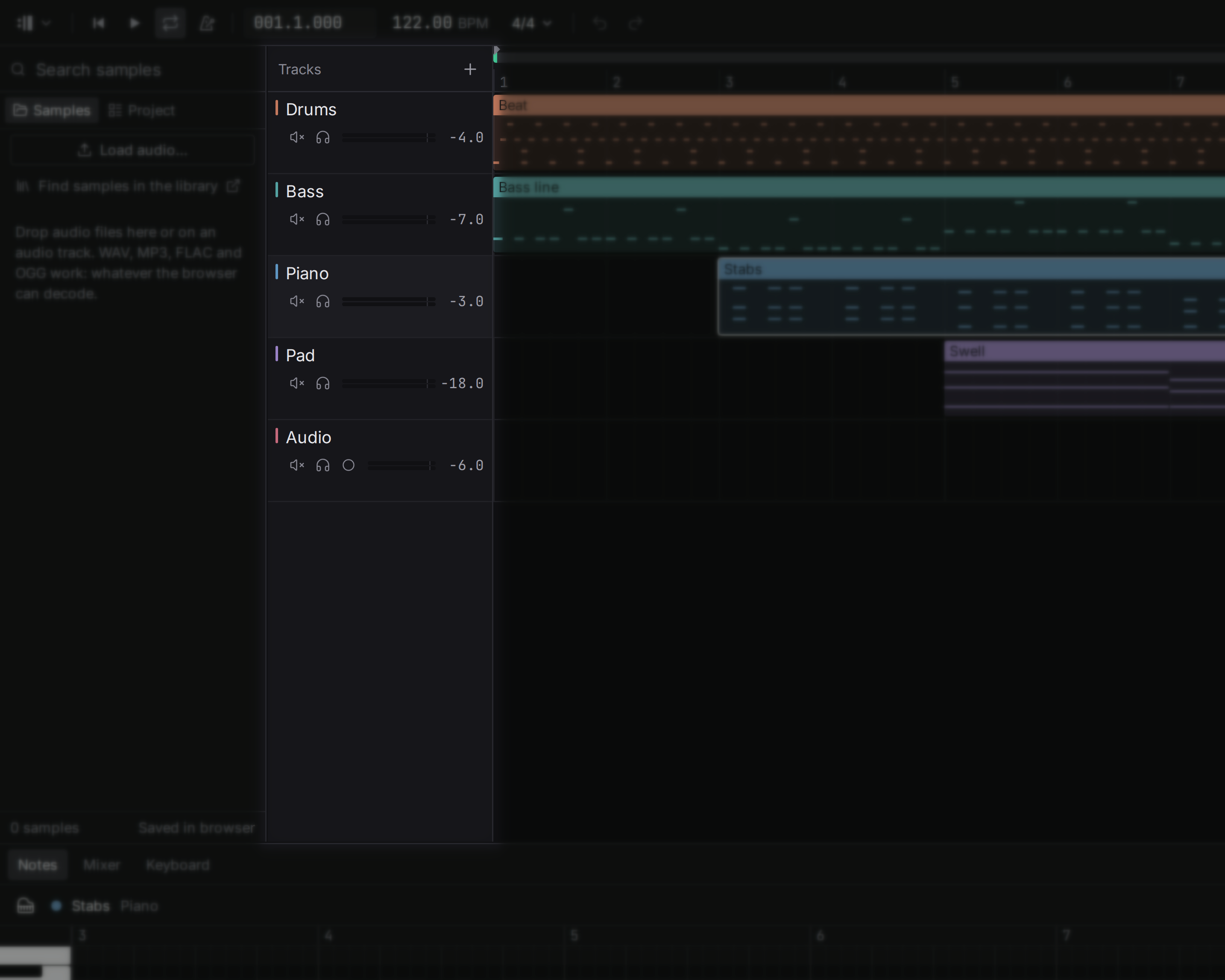
There are two kinds:
- Instrument tracks hold note clips and play them through an instrument: the synth, the drums or a sampled instrument such as the grand piano.
- Audio tracks hold audio clips: recordings and samples you imported.
A note clip cannot go on an audio track and the other way round; the studio will not convert one into the other behind your back.
Adding a track
Use the button above the track list and pick what the track should be: a synth preset, synthesized drums, an audio track, or any recorded instrument from the library. Type a few letters to filter the list. You can also press Shift+T for a synth track or Alt+Shift+T for an audio track, drag an instrument in from the library, or drop an audio file below the last track to create an audio track for it.
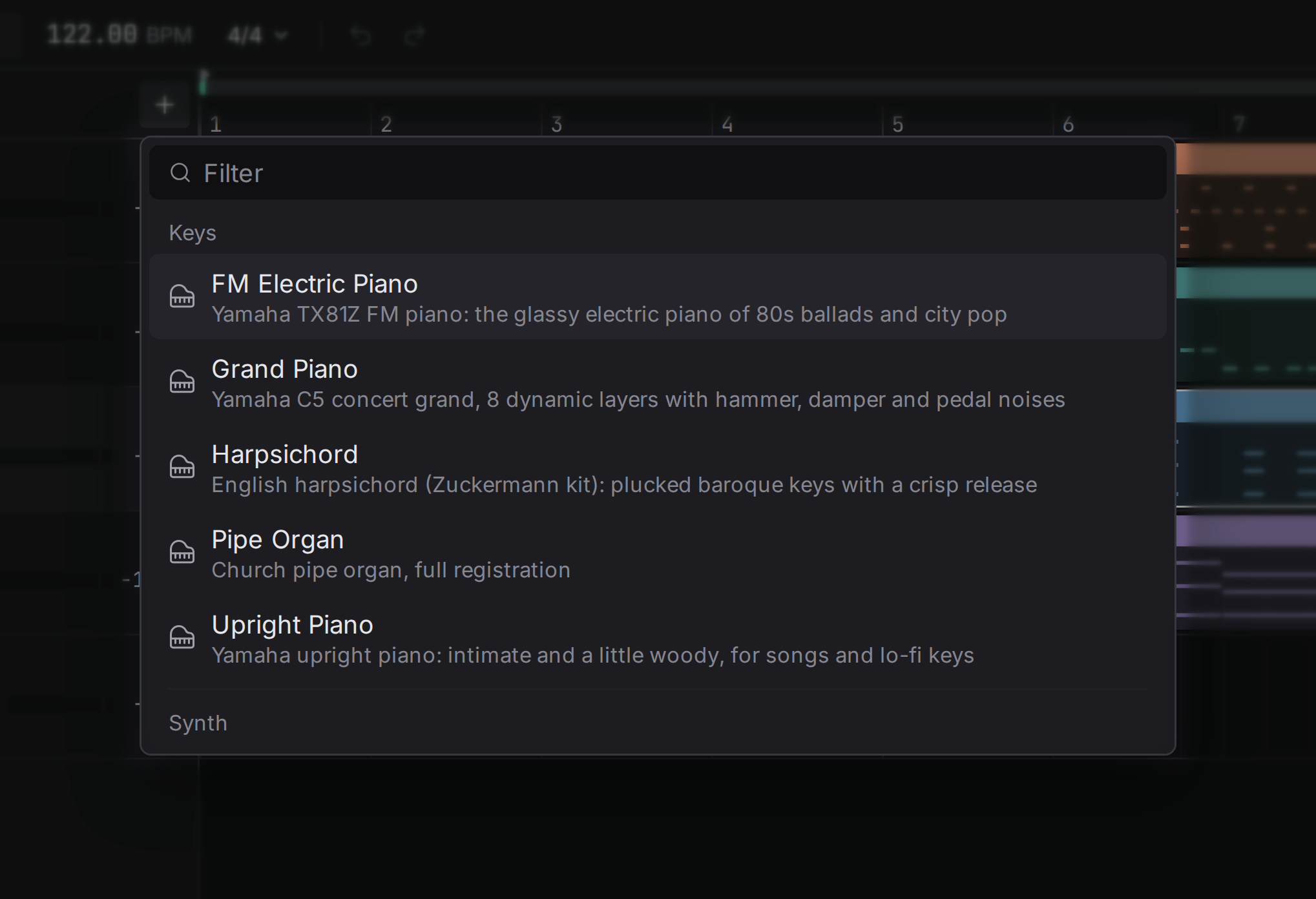
The new track is selected, so the inspector on the right shows its settings straight away.
Duplicate a track
In the desktop app. Duplicate track (Ctrl+Shift+D, or the track’s menu) makes a copy right below the original: its devices, curves, sends and its own copy of every clip. Change the copy without touching the original, for example to try another sound for the same part.
Group tracks
In the desktop app. Select several tracks and choose Group selected tracks from the track menu. They go into one group, placed where the first of them was: one fader turns them all up or down together, and an effect on the group works on all of them at once. Group the drums, or all the backing vocals, so the balance inside the group stays as it is while you fit the whole group into the mix.
A shared reverb
In the desktop app. Add a shared reverb gives the selected tracks one room to sit in. It adds a new track with a Reverb set to only the room sound, and a send to it from each selected track at −12 dB. Parts that share one reverb sound as if they were played in the same place, and turning one send up puts more of that part in the room. Like every step here, one undo takes the whole thing back.
Mute
Mute silences a track without deleting anything. Use it to hear the song without the drums, or to compare two versions of a part on two tracks. A muted track’s clips are drawn faded.
Solo
Solo plays only the soloed tracks and silences all the others. It is how you listen to one part closely: solo the bass to hear exactly what it plays. Several tracks can be soloed at once. While anything is soloed, mute buttons have no effect, because solo already decides what you hear.
Arm for recording
Audio tracks have one more button in their header, the round arm button . An armed track is the one the next take lands on: arm it, press play, and what the microphone hears is recorded there until you stop. Only one track is armed at a time, and instrument tracks have no arm button, because they hold notes, not recordings. The whole of recording is in Samples: Recording.
Volume
Each track has its own volume, in decibels. It is the same setting as the fader in the mixer and the Volume knob in the inspector; see the mixer for what decibels mean and what to listen for. The dB value in the track header is a control too: drag it up or down, or double-click it to type a value.
Pan
Pan places a track between the left and right speakers. It is explained, with examples, in Mixer: Pan.
Colour
Every track has a colour, used for its clips, its notes and its meter, so you can find the bass at a glance in a crowded song. Change it in the inspector. The colours are chosen to be equally bright, so no track shouts louder than another just because of its colour.
Renaming
Double-click a track’s name, type the new one and press Enter. Esc keeps the old name. Good names (“Lead vocal”, “Kick”) save a lot of guessing later.
Height
Drag the bottom edge of a track, either under its name or under its lane, to make it taller or shorter. A tall track shows its notes and waveforms in more detail while you work on it. Double-click the edge to return to the normal height. Heights are a view setting kept in this browser: they are not part of the song and are never undone.