# Getting started
Flesance is a **DAW**, a digital audio workstation: a program for making music on a computer. You write notes, play instruments, bring in recordings, arrange them in time and balance how loud everything is. This page walks through the screen and gets you to your first sound in about a minute.
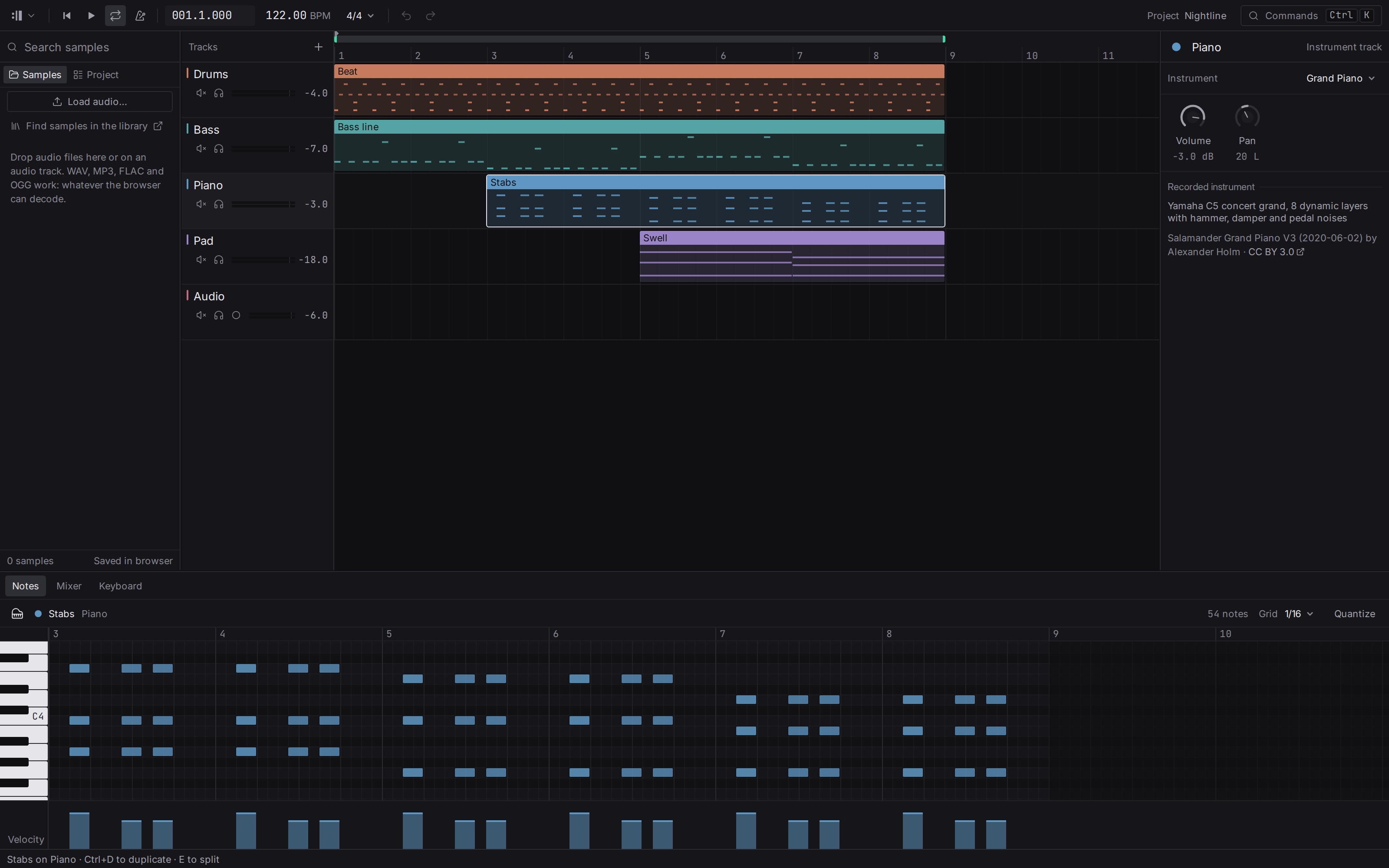
## What you see {#screen}
From top to bottom:
- **The transport bar**: play and stop, the position, the tempo, the loop and the metronome. See [Transport](/manual/transport).
- **The arrangement**, the big area in the middle. Each horizontal lane is a [track](/manual/tracks), and the coloured blocks on it are [clips](/manual/clips): pieces of music placed in time. Time runs from left to right, measured in bars.
- **The browser** on the left, where audio files you load live. See [Samples](/manual/samples).
- **The inspector** on the right, showing the settings of the selected track: its volume, its pan and its [instrument](/manual/instruments).
- **The bottom panel**, which shows the [note editor](/manual/note-editor) for the open clip, the [mixer](/manual/mixer) or the on-screen [keyboard](/manual/note-editor#musical-typing).
Every divider between panels can be dragged to resize the panel. A panel stops at the smallest size that still works; **keep pushing past that** and it folds away, leaving a slim strip at the edge. Drag the strip back out, or double-click it, to bring the panel back at the size it had. A double-click on an open panel's divider restores its default size. and fold and unfold the browser and the inspector too. On a laptop-sized window the side panels open over the arrangement instead of beside it: pull the strip at the edge to open one, and selecting a track or clip opens the inspector.
In the desktop app the top bar is also the window's title bar: drag an empty part of it to move the window, and the buttons to minimise, enlarge and close the window sit at its right end.
On the very first visit the demo's **Stabs** clip is already open in the note editor, so there is something to look at and play straight away.
## Your first minute {#first-minute}
1. Press . The demo project plays. Press it again to stop.
2. Double-click the **Bass line** clip. Its notes open in the note editor at the bottom.
3. Double-click an empty spot in the note editor. A note appears and you hear it.
4. Press again and listen to your note inside the song.
5. Click the **Bass** track, then turn the **Cutoff** knob in the inspector while it plays. The bass gets darker and brighter. That is a [filter](/manual/instruments#cutoff).
Every change can be undone with . A drag is one undo step, and pressing in the middle of a drag cancels it. In the desktop app, a step that can no longer be undone (what it changed is gone, or has been changed again since from another computer) is dropped from the list, and the status bar names it; older steps still undo.
## A few words you will meet {#words}
- **Bar and beat**: music is counted in beats (the pulse you tap your foot to), grouped into bars, usually of four beats. The position `005.3.000` reads as bar 5, beat 3.
- **Tempo**: how fast the beats go, in beats per minute (BPM).
- **Note**: one sound with a pitch, a start, a length and a [velocity](/manual/note-editor#velocity) (how hard it is played).
- **Sample**: a piece of recorded audio. See [What is a sample](/manual/samples#what-is-a-sample).
- **dB (decibels)**: the unit for loudness. See [Volume](/manual/mixer#volume).
## The status bar {#status-bar}
The thin bar at the very bottom tells you what is going on:
- On the left, a hint about what is under the pointer, or what the keys you hold do during a drag (for example to copy).
- On the right, **running processes**: an instrument downloading, a mix being exported, audio being read or saved, a recording. Each shows its progress and, where it can be stopped, a cancel button. When several run at once they fold into one line ("3 running"); click it to see them all. Finished work disappears after a moment; something that failed stays, with **Try again**.
- While [musical typing](/manual/note-editor#musical-typing) is on, the status bar says so, because letter keys then play notes instead of running commands.
## Changed in two places {#changed-in-two-places}
**In the desktop app.** When a song is worked on from two computers while they are apart, the same thing can be changed on both: a knob turned to different values, a clip moved on one computer and deleted on the other. The studio keeps the later change, so the song always plays, and counts these cases in the status bar: "2 changed in two places". Click it to see the list. Each entry says what is kept, what is not, and on which computer each was done, and offers:
- **Keep as is**: the kept change stays and the question is closed.
- **Bring back the other**: the change that was not kept replaces the kept one.
Either answer is an ordinary change, so takes it back.
## Finding everything {#commands}
Press to open the command palette, or click **Commands** at the right of the transport bar. Every action in the studio is listed there, with its keyboard shortcut next to it. If something is not in the palette, it does not exist yet. The full list of keys is in [Keyboard shortcuts](/manual/keyboard-shortcuts).
Hovering over any control shows what it does, its shortcut and a **Learn more** link to the right place in these pages. In the desktop app the link opens this manual in your web browser. Right-click a clip, a note or a track name for a menu of what you can do with it.
## Saving and opening projects {#projects}
Projects are kept differently on the web and in the desktop app, so the two are described one after the other. In both, the commands are in the project menu, behind the Flesance mark at the left end of the transport bar.
**In the browser**, the studio keeps your project in this browser as you work, so closing the tab loses nothing. To take a project elsewhere, or to keep a copy:
- **Save project as file** () downloads one `.flesance` file with the project and every recording its clips use.
- **Open project file** () opens such a file. If the current project has changes that are not in any file yet, you are asked first, because opening replaces it in this browser.
- **New project** () starts from an empty project, with the same question.
**In the desktop app**, every project is a folder on your computer, and the app looks after it: you never pick the folder by hand.
- **Save project** () writes the project to its folder.
- **Open project…** () lists the projects on this computer.
- **Save project as file…** writes one `.flesance` file, the same kind the web studio makes, to send to someone or to keep as a copy. **Open project file…** opens one, from the web studio or from another computer.
- **New project** () starts an empty project.
- **Close project** () saves the project and returns to the [start screen](#start-screen).
Leaving a project, by closing it, opening another or closing the window, waits for a take that is still being saved. Audio that is still being loaded is not waited for: the loading stops, the status bar says so, and the files already read stay in the project.
A `.flesance` file is a single compressed archive (tar, compressed with Zstandard) holding the project and its recordings as lossless WAV. Instruments from the [library](/library) are not copied into it: the file names them, and the library provides them wherever it is opened. The file records which version of the format wrote it, so a newer Flesance can always open an older file, and an older one says clearly when a file is too new for it.
## The start screen {#start-screen}
The desktop app does not open straight into a song. It opens on a start screen, and closing a project brings you back to it. The web studio has no start screen: it opens the project kept in the browser.
Under **Start**:
- **New project** opens an empty project.
- **Open project…** lists the projects on this computer.
- **Open project file…** opens a `.flesance` file.
- **Open the demo project** opens a fresh copy of the demo song, yours to change.
Move through the screen with and and press to choose. The usual shortcuts work here as well, and the mark at the top left opens the keyboard shortcuts and the settings.
## Recent projects {#recent-projects}
Below the commands, the start screen lists the projects you opened last, newest first, each with its name, where it is kept and how long ago you had it open. The most recent one is already highlighted, so takes you straight back to the song you were working on.
A project marked **Missing** is one whose folder is no longer where it was, for example on a drive that is not connected. It cannot be opened until the folder is back. To take any project off the list, press the cross at the end of its line, or ; this removes the line only, and the project itself stays on the disk.
## Settings {#settings}
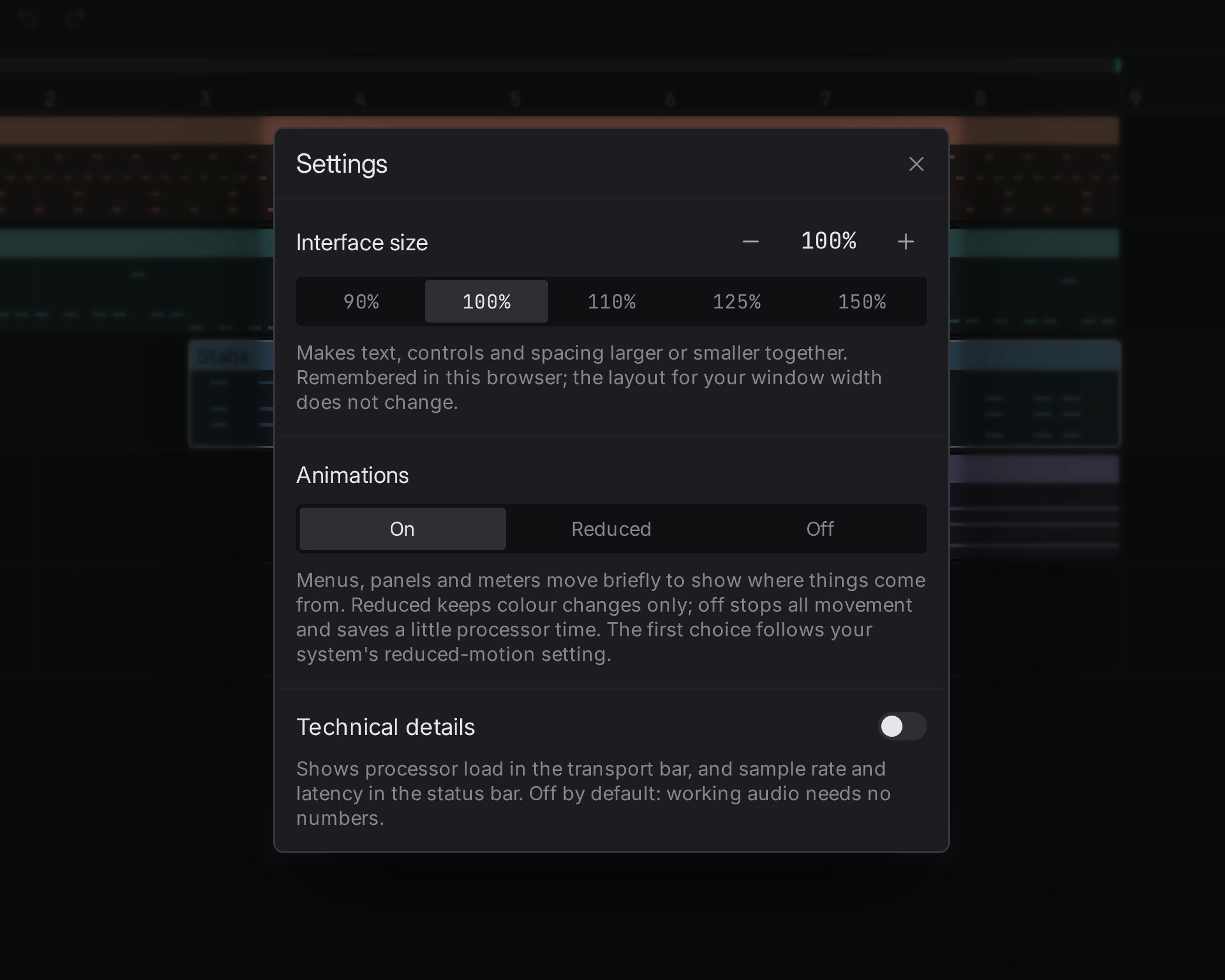
**Settings** (, or the project menu behind the Flesance mark) has these choices, remembered in this browser, or on this computer in the desktop app:
- **Interface size**, from 90 % to 150 %. Everything in the studio grows or shrinks together: text, buttons, tracks, the note grid. On a large monitor seen from further away, 110 % to 125 % is usually comfortable; on a laptop, 100 %. On a very wide screen the first visit starts at 110 %.
- **Technical details**: off by default. Turned on, the transport bar shows the [processor load](#load) and the status bar shows the sample rate and latency.
- **Animations**: *On*, *Reduced* or *Off*. Animations are short and never delay what you do; *Off* also stops the purely decorative ones, which saves a little processor time on a slow computer. The default follows your system's "reduce motion" setting.
- **Recording input**, in the desktop app only: which input takes are recorded from, and whether you hear it while a track is armed. See [Choosing the input](/manual/samples#input).
## Showing in Discord {#discord-activity}
In the desktop app, while Discord is running on the same computer, the studio can show on your Discord profile that you are making music. People who can see your profile read **Making music**, how long you have been at it, and a button that opens flesance.studio. That is all: the name of your song is not shown unless you allow it.
**Settings** has two switches for it:
- **Show in Discord that I am making music** is on by default. Turned off, the studio tells Discord nothing, and anything it showed is taken away.
- **Include the project's name, tempo and key** is off by default. Turned on, the profile also reads the open project's name, tempo and key, for example *Night Drive · 120 bpm · A minor*. Leave it off for a song you have not released, or for a client's work: anyone who can see your profile can read it.
It shows only while a project is open, and it is taken away when you close the studio. If Discord is not running, nothing happens and nothing is reported; if you start Discord later, the studio finds it within half a minute. If you have switched activity sharing off in Discord itself, nothing appears, whatever the studio says.
The studio talks only to the Discord program on your own computer. It uses no account and no password of yours, and it sends nothing over the internet for this: what Discord does with the activity afterwards is up to Discord and your privacy settings there.
## Processor load {#load}
With **Technical details** on, the transport bar shows how much of the time available for each small slice of sound the computer spends making it. Low numbers mean plenty of room. Near 100 % the sound starts to crackle, because a slice was not ready in time: fewer tracks playing at once, or a larger buffer in the system's sound settings, brings it down.
The number holds the busiest recent moment and then falls back slowly, so a short spike stays long enough to read. Below 10 % it shows one decimal place.
The desktop app opens the sound device as soon as a project is entered, so the number is there before the first play, and a MIDI keyboard or the input you are listening to sounds at once. If the device cannot be opened, the status bar says why, the project still opens, and pressing play tries again; until then a dot stands in place of the number. The web studio opens the sound on the first play, because a browser does not allow sound before you act.
## The desktop app {#desktop}
Flesance is a desktop application for macOS, Windows and Linux, in beta. The [download page](/download) has the builds. What is in the beta now and what is planned is listed in the [Roadmap](/roadmap).
This manual covers both the desktop app and the studio on the web. They look and work the same; where they differ, the page says so. The differences in one place:
- The desktop app opens on a [start screen](#start-screen) and keeps [projects as folders](#projects); the web studio keeps one project in the browser.
- The desktop app lets you [choose the recording input](/manual/samples#input) and [hear it while you record](/manual/samples#monitoring).
- [Exporting](/manual/mixer#export) asks where to save in the desktop app; on the web the browser downloads the file.
- Audio and takes are kept [with the project](/manual/samples#saved) on the desktop, and in the browser's storage on the web.
- The desktop app opens the sound device when a project is entered; the web studio opens it on the first play. See [Processor load](#load).
- A [MIDI keyboard](/manual/note-editor#midi) needs no connecting in the desktop app, and its pitch wheel bends notes.
- [Instruments](/manual/instruments#sampled) are downloaded once to this computer in the desktop app and then work without a connection.
- The desktop app can [show on your Discord profile](#discord-activity) that you are making music; the web studio does not.