# Clips
A **clip** is a block of music placed on a track at a point in time. On an instrument track a clip holds notes; on an audio track it plays a piece of a recording. Clips are what you arrange: you build a song by placing, repeating and cutting them.
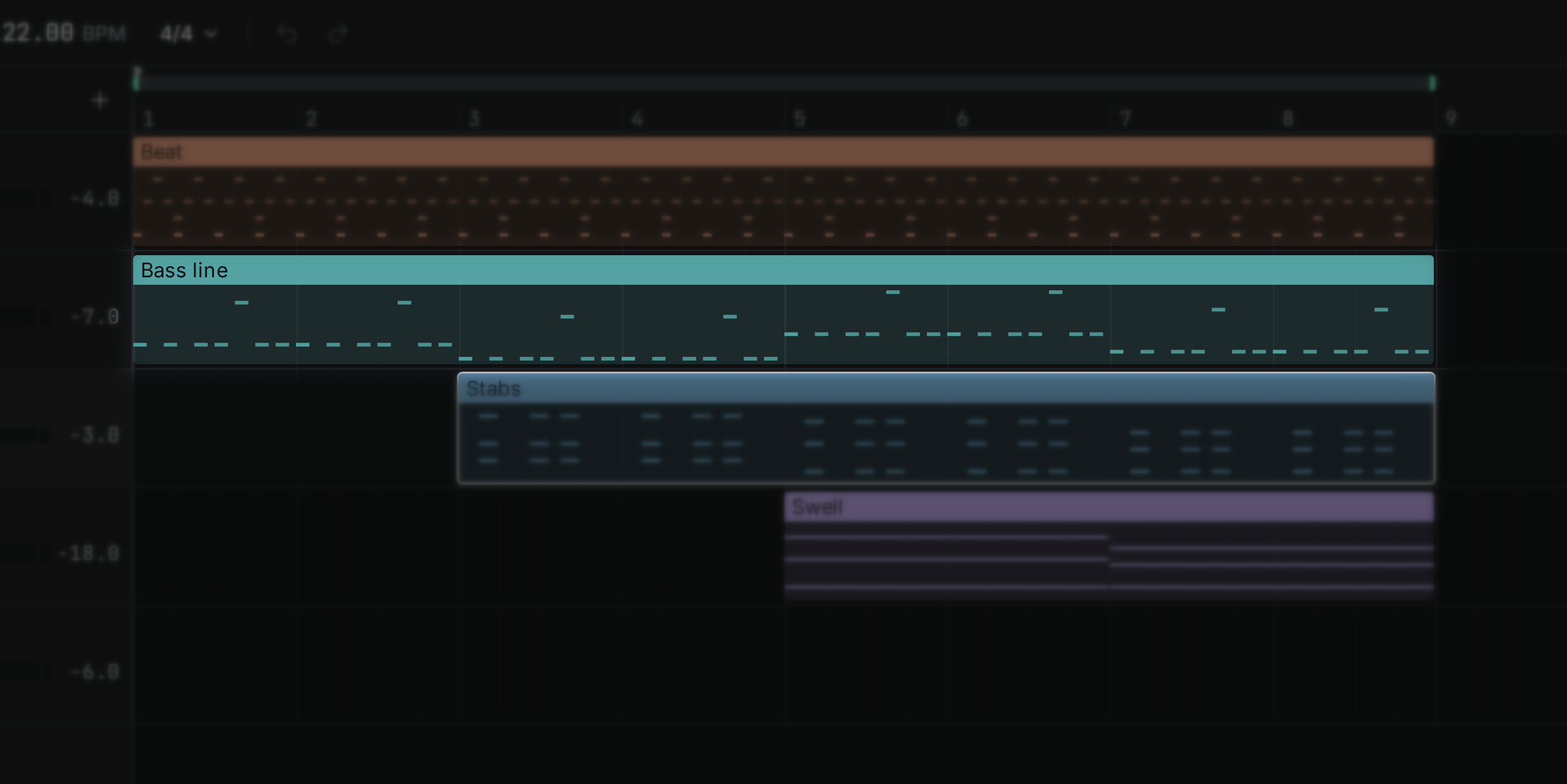
## Creating a clip {#create}
Double-click an empty spot on an instrument track. A one-bar note clip appears there and opens in the [note editor](/manual/note-editor), ready for notes. The status bar at the bottom says so while you hover an empty lane.
Audio clips are created by bringing in audio: drop a file onto a track, or use **Load audio** in the browser. See [Samples](/manual/samples#import).
## Selecting {#select}
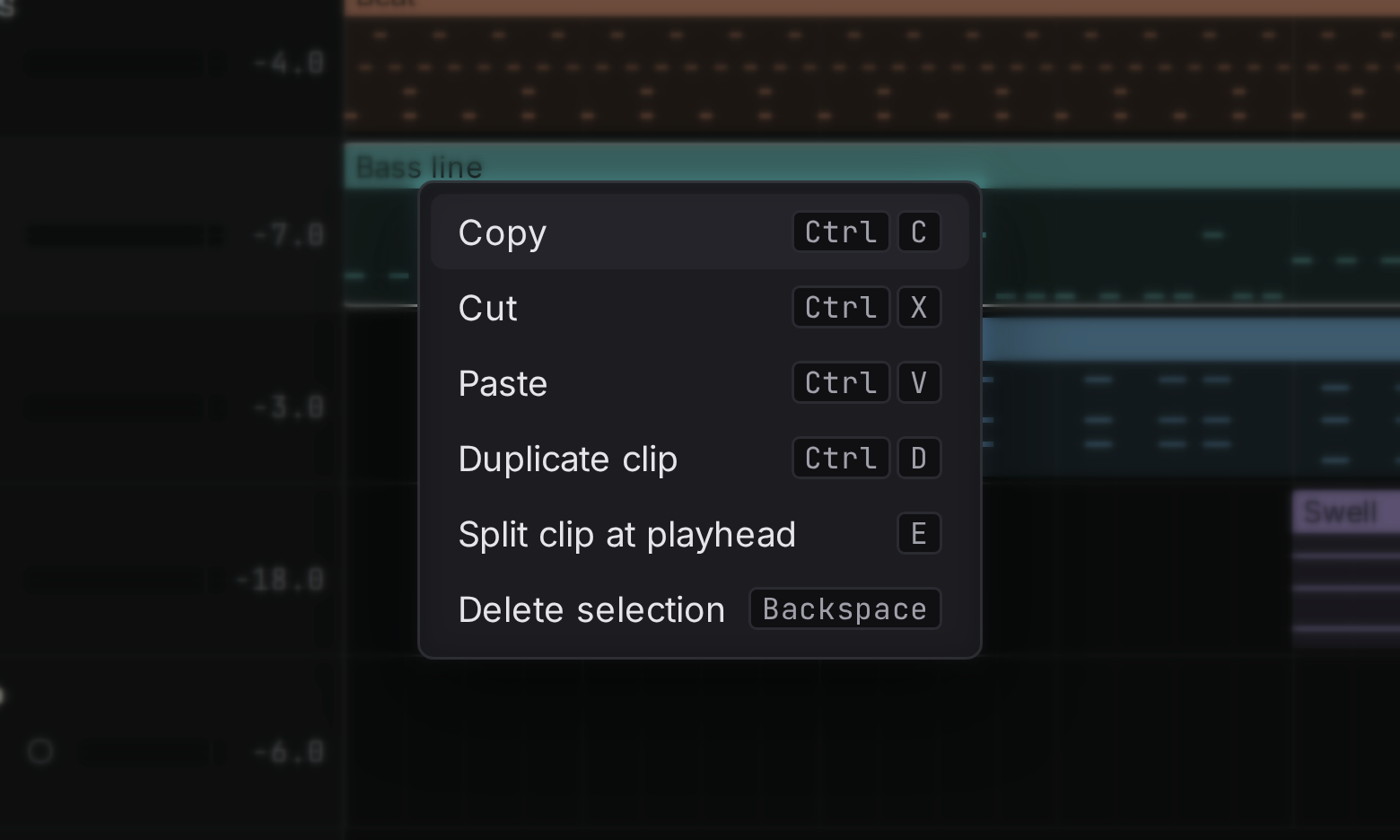
Click a clip to select it. Hold and click to add more clips to the selection or to remove one from it, or drag across empty lanes to select every clip the box touches. A click on an empty spot moves the playback cursor there and keeps the selection; clears it. Right-click a clip for a menu of everything you can do with it, with its shortcuts.
selects every clip in the song. Selected clips have a highlighted outline, and every clip command (move, copy, duplicate, split, delete) works on all of them at once.
## Moving {#move}
Drag a clip left or right to move it in time, and up or down to move it to another track of the same kind. Clips snap to the [grid](/manual/note-editor#grid), so they land exactly on beats; hold while dragging to place them freely.
Hold while you start dragging to leave the original in place and move a copy.
## Trimming {#trim}
Drag the left or right edge of a clip to make it shorter or longer. Trimming does not delete anything inside: notes beyond the new end stay in the clip and simply do not play, and dragging the edge back brings them back. Trimming the left edge of an audio clip starts the recording later, so the sound stays in the same place in time.
## Splitting {#split}
Put the cursor where you want to cut and press . Every selected clip under the cursor is cut in two there. Use it to cut a long recording into phrases or to change the second half of a part.
## Duplicating {#duplicate}
places a copy of each selected clip right after it. It is the fastest way to turn one bar of drums into eight.
## Copy, cut and paste {#copy-paste}
copies the selected clips, cuts them (copies, then removes), and pastes them at the cursor, on the grid.
Pasted clips keep their shape: clips copied from several tracks land on as many tracks, with the same distances between them in time. The topmost one goes onto the selected track, so select a track first to paste a part somewhere else. A clip never lands on a track of the other kind: a note clip that would fall on an audio track goes back to the track it came from.
Every paste can be undone in one step, and you can paste the same copy as many times as you like.
## Deleting {#delete}
deletes the selected clips. Like everything else, it can be undone.